

HOUSE DUCK · AUTOMATIC TRANSLATION
The process of uploading an app to the Apple market | Quirky Ball
The process of uploading an app to Apple
was not something that ended just by preparing the game build.
Starting the iOS release preparation for Quirky Ball,
the address registered in App Store Connect
was found to remain as the German address before moving.
I thought changing just one line of address would be enough.
However, at Apple, because this address is linked to the contract,
it was not a method of fixing it directly in the profile.
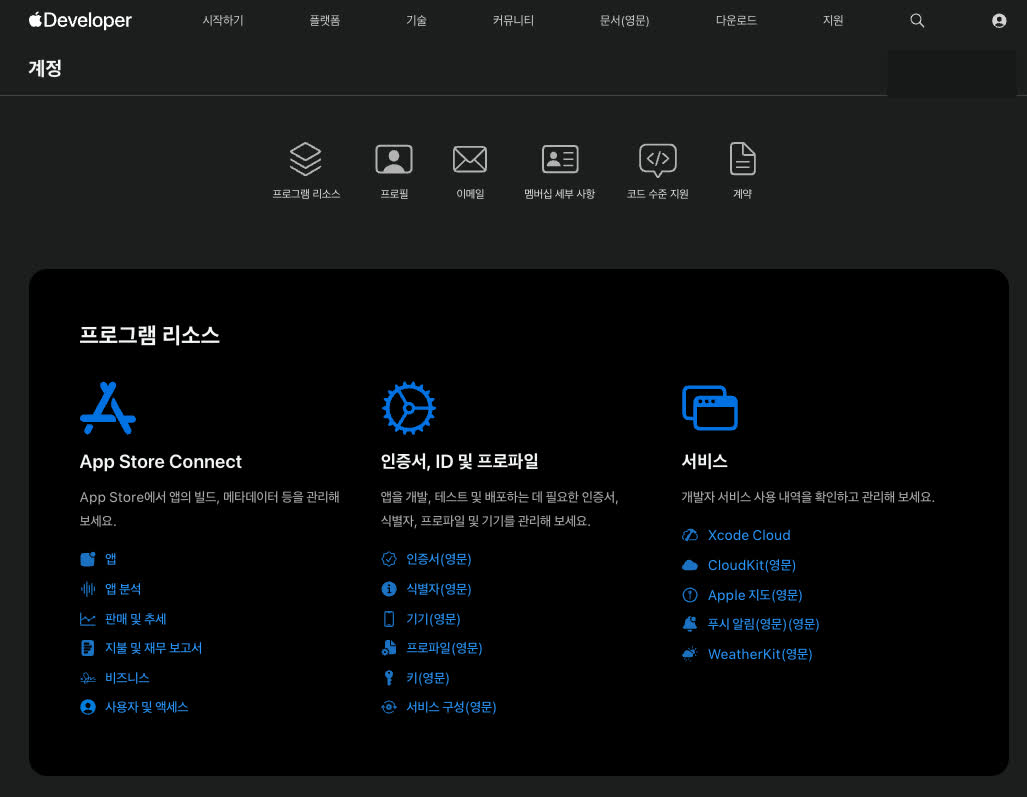
The address in App Store Connect was the old address.
First, logging into the Apple Developer account,
I checked the membership details.
The program was registered normally, but
only the address information from before the move remained.
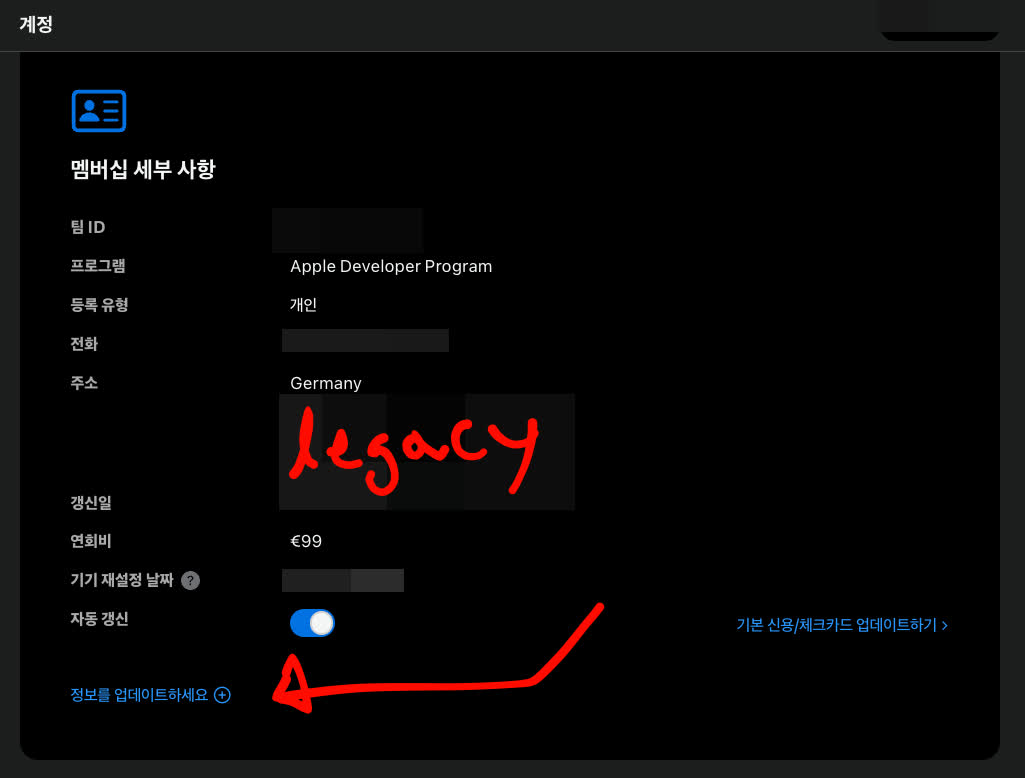
Clicking 'Update your information' at the bottom of the screen,
I applied for an address change with Apple Developer Support.
Even in Apple's official guide,
it says that to change the name or address associated with the Developer Program,
you must submit a change request and have it verified with supporting documents.
Official guide for changing Apple Developer account information
In other words, rather than editing the address input box and saving,
it was a procedure where Apple checked the new address and reflected it.
A request for supporting documents came after 3 to 4 business days.
After sending the address change request,
in my case, a reply came after about 3 to 4 business days.
This period is just my actual experience,
and does not mean that all applications are processed within the exact same time.
The email asked to upload one of the documents
containing the new address.
For example, a valid government-issued ID,
a mail forwarding application form,
an address verification document from the local residency office,
or materials like a recent utility bill, bank statement, or government correspondence.
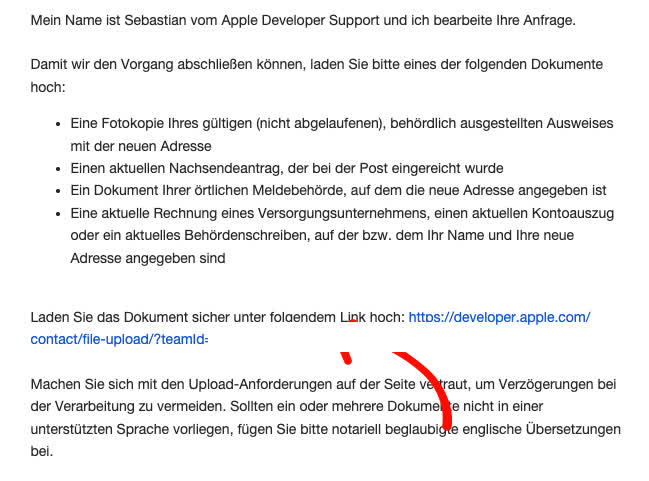
I decided to organize the front and back of my German residence permit showing the current address
into a single file and submit it.
Up to this point, it was annoying but understandable.
The problem was the link sent to upload the file.
The automatic link in the email did not open properly.
When I clicked the link written in the email,
instead of the file upload screen,
a screen appeared saying 'This account does not have file upload permissions'.
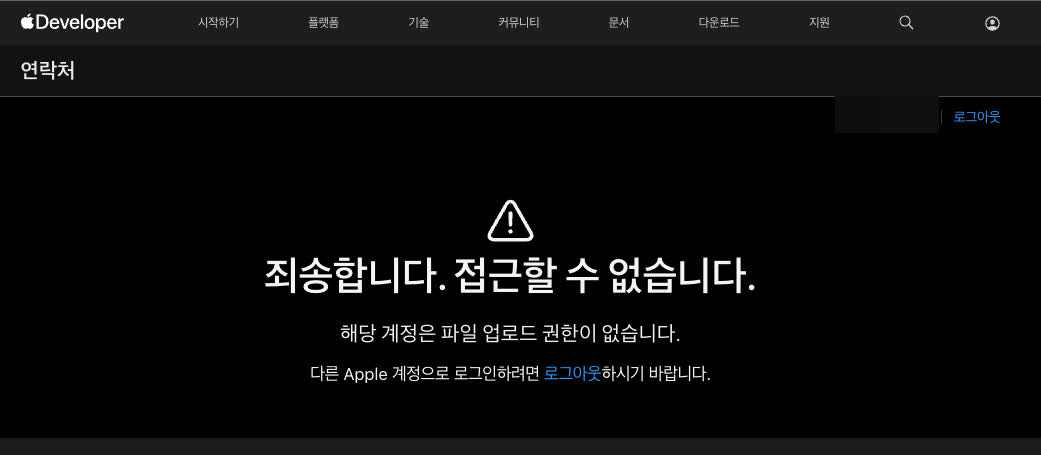
Eventually, I rechecked the internet address written in the email.
Either a period attached to the end of the sentence in the email got mixed into the address,
or the value after ?teamId= distinguishing the account
was not included completely in the automatic link.
To put it simply for those without development knowledge,
the long internet address sent by Apple was cut off incorrectly in the middle.
In my case, I solved it like this.
I manually copied the address from the email from start to finish.
And excluding the 'period' attached like punctuation at the very end of the address, and,
including the identification value after ?teamId= up to the last letter,
I pasted it into the browser address bar.
Only then could I enter the normal file upload screen
with the same Apple account.
In the screenshots of this post as well, names, addresses, and account identification values are all masked.
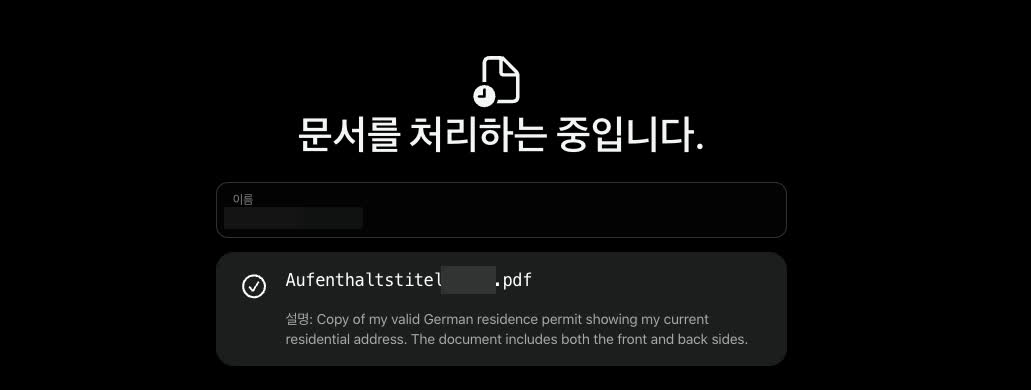
Upload success and address change completion are not the same thing.
After uploading the document,
a screen showing 'Processing document' was displayed.
What was confirmed here is only that the document was received normally.
Whether the address change is finally approved and
the new address is reflected in App Store Connect
needs to be checked again.
In the process of uploading Quirky Ball to the Apple market,
these kinds of administrative tasks keep popping up one by one.
Even if you don't know code,
you can prepare an app,
but a tiny bit of knowledge to distinguish where a link ends
can sometimes save you time.
If you are like me, coming from the Apple Developer address change link,
If suddenly it says you do not have upload permission,
before constantly switching accounts, make sure to check if the period at the end of the URL and
the value after ?teamId= are all included first.